






Access Management: Configure the dashboard, categories, and access permissions
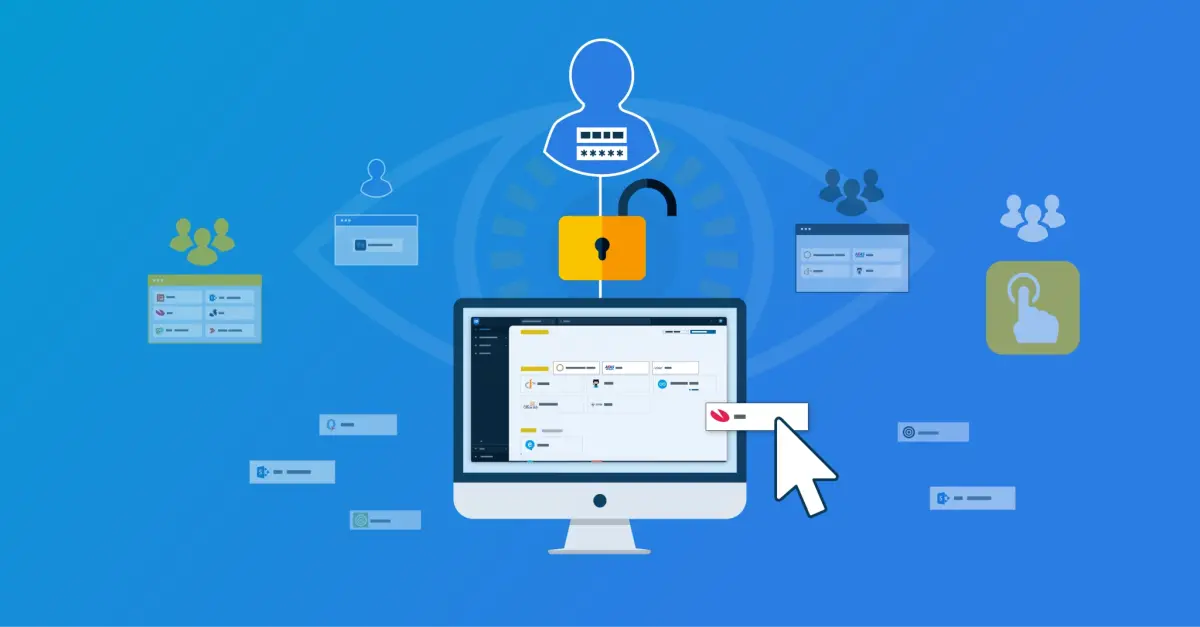
The Access Management module of Tools4ever’s HelloID identity and access management (IAM) solution uses an intuitive dashboard. This gives users quick, easy access to all applications they need. You can configure this dashboard in detail, including which applications are visible to users, and you can group applications into a category. This article explains how to configure the dashboard and the available options.
Easy access through the dashboard
HelloID uses Single Sign-On (SSO) to provide users with secure and user-friendly access to all applications they need. These applications are available through a dashboard, where users are automatically directed as soon as they log in. Through this dashboard, they can open the various applications and systems they are authorized to access with a single click.
 Configure the dashboard
Not every user needs access to the same applications. A finance or administrative staff member uses very different applications than IT or service desk staff. To keep the dashboard clear and easy to work with, you want to show only those applications on the dashboard that are actually relevant and accessible for a user.
It is not necessary to configure this per user; HelloID can fully automate it for you. Based on the groups a user belongs to, HelloID determines which applications should be shown on the dashboard. It also grants the correct permissions to launch applications based on role.
 By default, HelloID adds new users to the user group 'users' and assigns the role with the same name 'users'. HelloID also links new applications that you create to this user group and role by default. Applications are therefore visible and accessible to all users by default.
However, you can also create your own roles and link user groups to them. By linking applications to these groups, you make applications accessible only to users with a related job function. We recommend configuring the dashboard per role, and linking only those applications that are relevant to all users to the 'users' group. This keeps the dashboard clear and helps users quickly find the applications they need.
Categories
You can bundle applications on the dashboard into categories. This ensures that users can easily find the application(s) they need and keeps the dashboard organized, which supports productivity.
 You can choose to create categories yourself as an administrator and assign applications to them. Users cannot edit these managed categories. You can also allow users to create and manage categories themselves.
In addition to categories, users can also mark applications as favorites. Favorite applications always appear at the top of the dashboard.
Access permissions
For usability, you want users to see only applications on the dashboard to which they actually have access. This prevents users from encountering error messages when opening an application.
 You do this by linking applications to groups. By aligning roles and groups, you can easily ensure that all applications a user sees are actually accessible. Does a specific user need access to an additional application outside the standard set? You can link it to the individual user and assign the correct access permissions.
You can also combine permission assignment with the HelloID Service Automation module. This allows you to let users request access to a specific application themselves. More information about the Service Automation module can be found here.
Get started
Do you want to get started with HelloID Access Management? Visit our website for more information about the capabilities. Do you have questions? Contact us. Our experts are ready to help you.