








Import Source Data From an HR System
The Identity and Access Management (IAM) solution HelloID handles the identification, authentication, and authorization of users. HelloID Provisioning plays a key role as a module that manages everything related to user accounts and permissions. You decide which source system HelloID Provisioning retrieves HR data from, and which target system the module pushes it to. In this blog, you will learn how to connect an HR system and import HR data easily. HelloID also supports loading any type of data by using custom fields.
Support for Virtually Every HR System
HelloID provides out-of-the-box support for a wide range of popular Human Resource Management Systems (HRMS). The same applies to common Student Information Systems (SIS). A HelloID connector is available for nearly all source systems available in the Netherlands. If Tools4ever does not yet have a connector for a specific HR or source system, we can develop it for you, or you can build it yourself.
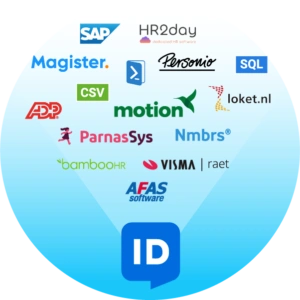
Some organizations rely on custom systems, often developed in-house. Or certain people are not in the HR system but in another source. That does not mean importing data from these source systems is impossible. HelloID's PowerShell source system provides a solution and offers significant flexibility. With this system, you can use the Provisioning module to read source data from nearly any source system. The only requirement is that an interface is available to read and/or write data.
Import People
With a HelloID connector, you can load employee data into HelloID. The first part of the connector loads the people. You decide how and from where you retrieve this information. You can import up to 30,000 people. Each user's data must include at least one unique field that identifies the user, for example, an employee ID or personnel number.
By importing your HR data, you can load a wide range of information into HelloID. For example, users' identities and employment details. This includes contract start and end dates, costs associated with a specific employee, and the department where an employee is active. Every employee-related object loaded via a connector is stored in a hash table.
Import Departments
Especially in larger organizations, employees often work within a specific department. The department to which an employee is linked is retrieved by HelloID through the previously mentioned people synchronization. You can also easily load information about the various departments and the organizational hierarchy into HelloID.

You do this with the second part of the connector. This is useful for determining relationships between managers and employees. HelloID stores department information separately from people and contracts. This is important because it allows you to link multiple people and contracts to a single department.
Schedule Automatic Synchronization
Every workforce changes over time. It is therefore important that the HR data available to HelloID is up to date. You ensure this by importing HR data automatically on a fixed daily schedule. You decide exactly when the import runs.
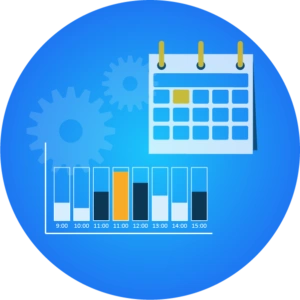
Creating a schedule for importing data from an HR system is simple. You provide a name for the import, select the system you want to retrieve data from, and choose a one-hour time window. Color indicators show at a glance when server load is high or low during the day. Based on server load, HelloID determines when, within the selected window, the synchronization will run. If the chosen hour is busy, the sync may start slightly later, for example, fifteen minutes later. You can schedule a maximum of three synchronization runs per day.
You can run HR data imports fully automated. Prefer to keep control of it yourself? Then you can also run the process manually. You can also have HelloID perform an evaluation. An evaluation provides a forecast of the net effect of what HelloID would do. In practice, this means the system uses your configured rules to map the actions it would take on end users, without actually applying the changes. This gives you precise insight into the actions HelloID plans to perform during the import. If you agree with the proposed actions, you can apply them to target systems with an 'enforcement'. This staged process ensures that when you change the configuration, you can always check the impact before instructing HelloID to execute it.
Configure Multiple Source Systems
In some cases, organizations work with multiple source systems. HelloID supports this and can import and combine data from multiple systems. In this case, you simply add multiple HR systems as source systems.
You can see which source systems are configured at a glance in the Provisioning dashboard. Click the Source Systems icon to view an overview of all systems connected to HelloID. You also see when data was last imported from each system and how many people were retrieved. With a single click, you can start a manual import from this dashboard.

In addition, you can easily manage the configuration of the source systems connected to HelloID from the Provisioning dashboard. This includes how you want names to be displayed, as well as the custom fields described below.
Custom Fields
We noted earlier that some organizations use custom HR systems. The data that standard systems store and the fields they use also vary. HelloID provides a robust set of fields that support the vast majority of data from your HR system.

Would you like to store data in HelloID, but there's no standard field available? The Provisioning module allows you to create your own fields. This lets you store all data related to people and contracts in HelloID. Even if your neighbor uses the same HR vendor, you do not have the same HR system. Organizations often add free fields themselves to record, for example, whether someone is an emergency response officer, serves on the works council, or needs a badge.
You decide which system populates which data into a specific field. To do this, you adjust the configuration of the source system connected to HelloID. The 'Map additional field' tool in the Provisioning dashboard guides you through the process.
Once you have retrieved the required data and loaded it into your custom fields, you can push this data to the target system. This includes on-premises Microsoft Active Directory (AD) and cloud-based Microsoft Azure AD, as well as your other target systems through the target connectors.
Get Started
The optimal way to configure the source system for your organization depends on the HR system you use. Our documentation will help you get started. Our experts are also ready to help you import HR data. Contact us for more information!
Others also viewed
 From A to IAM
- Product and technology
Why Do You Need an IAM Solution?
August 29, 2022
 From A to IAM
- Product and technology
How a Service Automation Solution Helps Your Organization
October 31, 2022
 From A to IAM
- Product and technology
How a User Provisioning Solution Helps Your Organization
September 27, 2022